Getting to know Afflato
Afflato is an audio plugin for flute. Put it on a flute recording, or play through it live, and it helps your flute sound finished right away. Clear, warm, the breath where you want it, and a beautiful space around it. We wrote this guide to show you how it all works.
Hear it
Each recording is Johnny playing, straight from the camera. Original is the raw take, just as it was recorded. Afflato is the same take after a Soundcheck, choosing Natural, with nothing else touched. + Drone is the same again with the drone turned up, in the key of the piece.
Switch while it plays: the take doesn’t restart, and all three are at the same loudness, so the louder one never wins by default. Headphones help.
Loading the flutes…
What Soundcheck heard
What it set
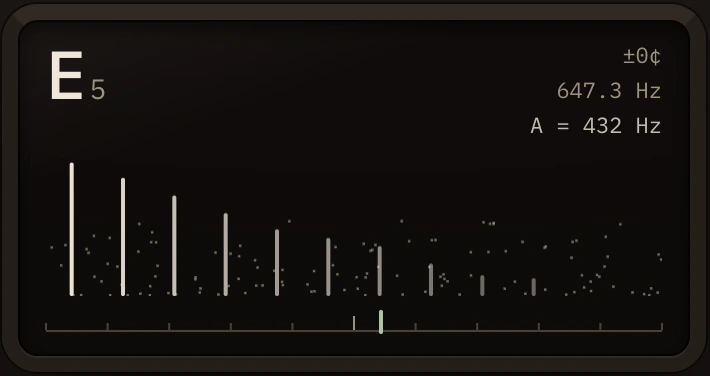
It hears the note
Most audio tools hear a flute as one sound. Afflato follows the note you’re playing, moment to moment, and splits the sound in two: the tone, which is the note and its harmonics, and the breath, which is the air around it.
Because it knows the note, it can do things a general tool can’t:
- Turn the breath up or down without dulling the note.
- Add warmth to the fundamental of whatever note is sounding, not to one fixed spot.
- Cut rumble just below the note, following the melody as it moves.
- Build a drone from your notes, not your breath, tuned to your flute.
Getting started
- Put Afflato on your flute track, or open the standalone app and play into your microphone.
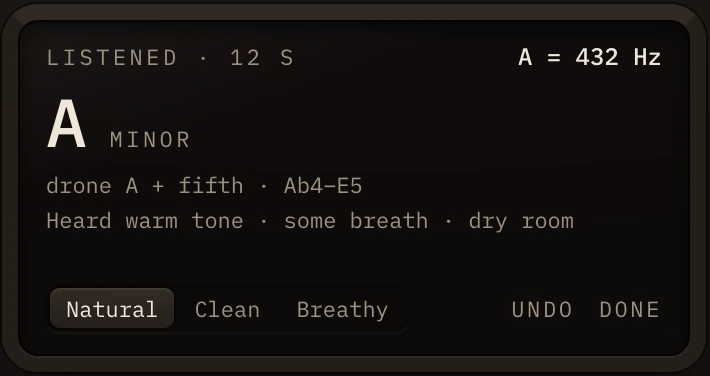
- Press Soundcheck and play a phrase or two, live or from a recording. It needs about eight seconds of notes and stops on its own. Press it again to finish sooner, once it has heard three.
- Read what it heard: the key, the A your flute is tuned to, the range you played, and the character of your tone. Every control is now set from that.
- Choose a character: Natural, Clean or Breathy. Undo goes back to your settings from before the Soundcheck; Done keeps the new ones.
- Then adjust by ear. More Space for a bigger room, Drone for a bed underneath.
The five areas
- CleanRemoves what shouldn’t be there: rumble underneath, and harshness on high notes.
- ShapeThe tone itself: how much breath, how much warmth, how much air.
- SpaceThe room around the flute, which steps back while you play.
- DroneA slow, sustained bed of sound made from your notes, in your key.
- OutputHow wide the flute sounds, and how loud it leaves.
Presets
Presets are starting points for different flutes and moods. Pick one, then adjust. They set the sound, but leave your song’s settings alone: your tuning and the drone’s key stay as they are.
- Concert Flute · Studio: clean and close, in a small room.
- Bansuri · Temple Hall: warmer, in a larger hall, a little wider.
- Quena · Mountain Air: brighter, with more breath and air, in an open room.
- Native Flute · Canyon: a big space with a touch of drone.
- Drone Bed: breath pulled back, a vast room, and a strong drone.
- Dry & Clean: no room at all and the breath well back, for mixing elsewhere.
Save your own with the disk icon. They’re kept apart from the factory ones, so updates never touch them, and you can star favorites to keep them at the top.